# User guide
This page describes the desktop app. The Android and iOS apps have the same pages as tabs at the
bottom of the screen; [Android and iOS](MOBILE.md) covers what is different there.
The app has five pages, in the bar at the top: **Library**, **History**, **Shares**,
**Downloads** and **Settings**. **Ctrl+1** to **Ctrl+5** open them.
## Library
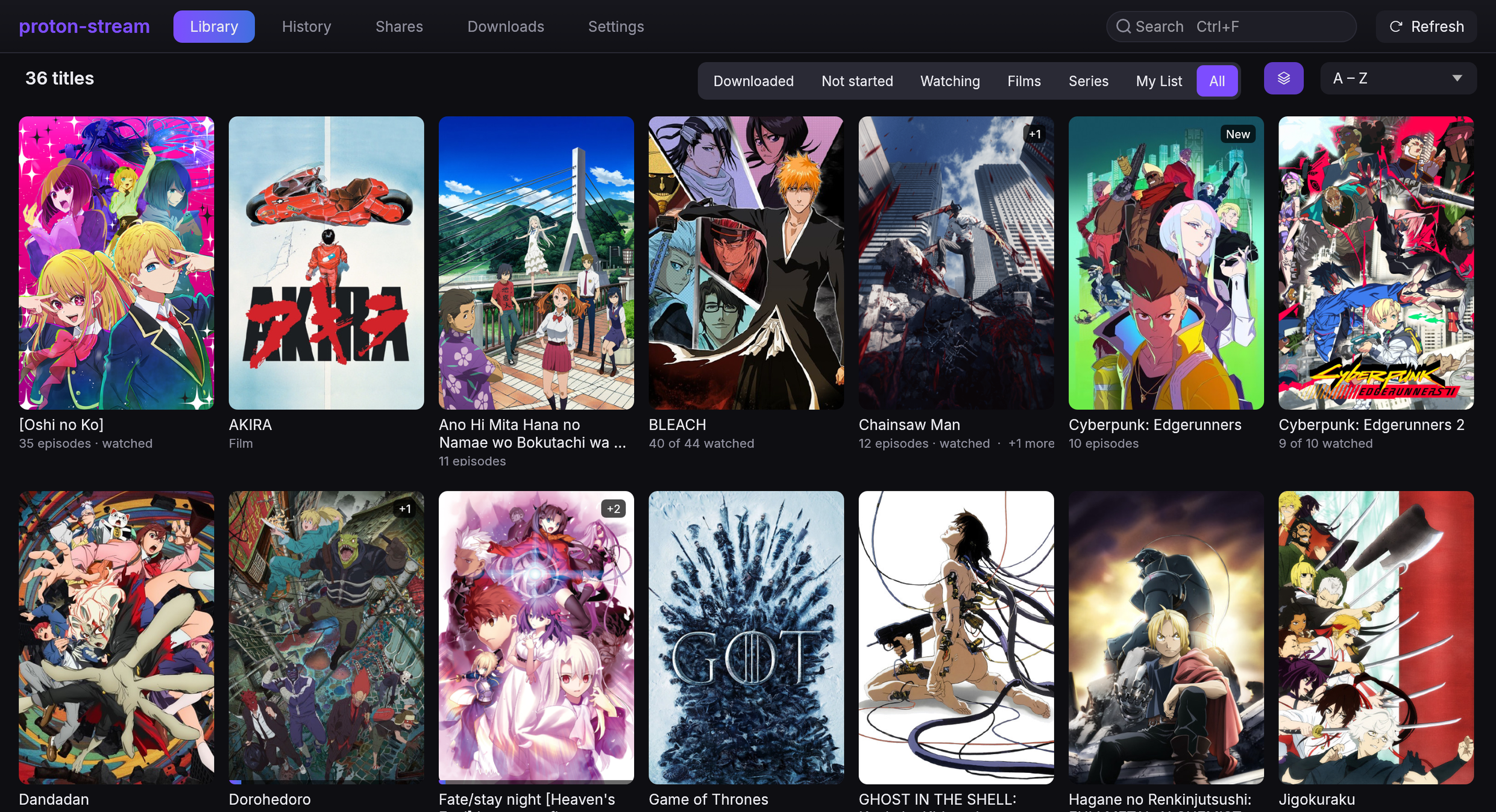 The library shows every title from every share in one place. Two shares that hold the same show
show it once.
- **The banner** across the top shows the title you watched last first, with **Resume**, how far
into it you are, **More info** and **My List**. It then turns through up to four more titles that have a wide
picture, a different set each day, moving on every eight seconds. It holds still while the
pointer is over it; on a phone, swipe it or tap a dot under it to move on yourself. Its shading
takes on the colours of the picture behind it, and so does the top of a title's page.
- **Continue watching** has the episode you stopped in for each show, or the next one when you
finished an episode. To take a show off this row, right-click it and choose **Remove from
Continue watching**.
- **New episodes** has the shows you are watching that got episodes since you last watched them.
Their tiles say how many, for example **3 new**.
- **My List** has the titles you put aside to watch, the last one added first.
- **Recently added** has the titles that arrived in the last two weeks and that you have not
started. Their tiles say **New**. What was already there when you added a share is not new.
- **Because you watched Frieren** has titles like the last one you watched to the end, that you
have not started. It needs posters and descriptions.
- **Shelves** such as **Airing now**, **Directed by Satoshi Kon** or **From MADHOUSE** appear when
posters and descriptions are on. The app shows at most four, and only for a director, studio or
genre with at least three titles. On a shelf, a show that is still airing says when its next
episode is out, for example **Ep 8 · in 2 d**.
- **All titles** is the full grid. Choose a filter and a sort order above it.
Rows that run past the window fade out at the edge. Point at a row to show the arrows at its
ends, which move it along by a page.
| Filters | Sort orders |
|---|---|
| All, My List, Series, Films, Watching, Not started, Downloaded | A – Z, Recently watched, Recently added, Newest, Highest rated, Most popular |
**My List** is a list of titles to watch later. Add a title with **My List** on its page or on
the banner, or right-click its tile and choose **Add to My List**. Choose the button again, or
**Remove from My List**, to take it off. When you are signed in, the list syncs to your other
devices ([Account and sync](ACCOUNT_AND_SYNC.md)).
**Group franchises** folds a series, its sequels and its films into one tile with a **+N** badge.
It is on by default, and needs posters and descriptions to know what belongs together.
**Search** with **Ctrl+F** or **/**. It matches every name a title has: the English one, the
romaji one and the name of its folder. With posters and descriptions on, it also finds:
- **People and studios**: directors and studios whose names match. Choose one to see all their
titles.
- **Genres** whose names match.
- **Episodes** whose names match. Choose one to play it.
The titles it finds come after these. Click the empty search box to see your last eight
searches. A search is kept only when you open something it found. **Clear recent searches**
removes the list. The list stays on this device and does not sync.
**Refresh** (or **F5**) reads every share again. The app also does this by itself when a share
has not been read for 6 hours.
### How the library reads your folders
The folder decides which show a file belongs to. The file name gives the season and episode.
| Layout | Read as |
|---|---|
| `Frieren/Season 01/S01E05.mkv` | Frieren, season 1, episode 5 |
| `Frieren/S01E05 - The Hero's Statue.mkv` | The same, with the episode title |
| `Bocchi the Rock/[Group] Bocchi the Rock - 07 [1080p].mkv` | Bocchi the Rock, episode 7 |
| `Spy x Family/Season 2 - 06.mkv` | Spy x Family, season 2, episode 6 |
| `Akira (1988).mkv` | A film, from 1988 |
| `Rebuild of Evangelion/Evangelion - 1.11 You Are (Not) Alone.mkv` and three more | Four films, one title each |
- Season folders can be called `Season 01`, `Season 1`, `S01` or `3rd Season`.
- Folders such as `Specials`, `Extras`, `OVA`, `NCOP` or `Subs` are not taken as a show's name;
the folder above them is.
- An episode title is read only after a dash, as in `S01E01 - Name`.
- A file with no episode number is a film. A folder of such files, each with a different name, is
one title per film.
The app plays `mkv`, `mp4`, `m4v`, `avi`, `mov`, `webm`, `ts`, `m2ts` and most other common video
containers.
## A title's page
 Click a title to open its page. **Esc** goes back. On a phone, the picture at the top slides
away more slowly than the page, and once it has gone a bar with the title's name stays at the
top.
- **Resume S01E03 · 12:04** continues where you stopped. **Start over** plays the episode from
the beginning.
- **Download show** keeps every episode on this device. See [Downloads](#downloads).
- **Match…** opens the matcher, where you choose which AniList, TVmaze or TMDB entry the title
is. Each result names the site it came from. Use it when the app guessed wrong or did not guess
at all. A match you pick is never replaced.
- **More on AniList** (or TVmaze, or TMDB) opens the title's page there.
- Each season has **Mark season watched** and **Download season**. A show with more than five
seasons lists them in a drop-down instead of a row of buttons.
- With posters and descriptions on, a chip under the name says where the show stands: **Airing**
with the day the next episode comes out, **Finished**, **Upcoming**, **On hiatus** or
**Cancelled**.
- Each episode shows a tick when you have watched it, at the end of its row and in the corner of
its picture. Right-click an episode and choose **Mark
watched up to here** to tick it and every episode before it.
- **In this franchise** lists the other parts of the series, when posters and descriptions are on.
- **More like this**, under the episodes, lists titles in your library that share the most with
this one: its director, studio, genres, tags and format. It leaves out the title's own
franchise, and shows one title from each other franchise. It needs posters and descriptions.
- The genre chips under the description open a page with every title of that genre in your
library. So do the **Studio** and **Director** chips. Back, or **Esc**, returns to the title.
- **Cast** lists the main characters and who voices them in Japanese. Click one to see every title
in your library with that voice actor. Search finds voice actors too.
- **Trailer** opens the title's trailer in your web browser. The app does not play it or load it
itself.
- Titles matched before this version get their cast and trailer by themselves the next time the
app looks up posters and descriptions.
- With posters and descriptions on, a show's logo takes the place of its name at the top of the
page and on the library's banner, and each episode says how long it runs. A film says how long
it runs in the line under its name.
- A title with no wide picture shows its poster blurred across the top of the page instead, and
on the library's banner the poster itself beside it.
- Small marks under the name say what most of the files are, when their names say it: **4K**,
**1080p**, **HDR**, **10-bit** or **Dual audio**.
An episode counts as watched once you have seen 90% of it.
## The player
The picture plays inside the app's window. Move the mouse to show the controls.
- **Skip opening** and **Skip ending** appear when the file's chapters mark an opening, an ending
or a preview. For an anime whose file marks neither, the app asks AniSkip where they are, with
**Posters and descriptions** on; they then show as chapters too. Turn on **Skip openings and
credits** in Settings to skip them without asking.
- **Up next** counts down 10 seconds when the credits start, then plays the next episode. Choose
**Play now**, **Cancel** or **Watch till the end**.
- **Subtitles and audio**, **Speed**, **Chapters** and **Sleep timer** are buttons at the bottom
right. Each opens a panel down the right of the picture; click the button again, or press Esc,
to close it.
- **Subtitles and audio** remembers your choice for each show. The panel also has **Size** and
**Position**, which are saved like the ones in Settings and change styled subtitles only when
they are restyled, and **Delay**, which moves subtitles earlier or later for this file only.
- **Speed** goes from 0.5× to 3×, and stays for the next episode.
- **Sleep timer**, the moon, pauses after 30 or 60 minutes, or stops at the end of this episode
instead of going on to the next.
- **Seeking and volume** show what they did in the middle of the picture. Several presses of ← or
→ add up, so three presses of → say "+ 90 s".
- **Paused** for 5 seconds with the mouse still, the picture dims and shows what you are watching:
the show's logo or name, the episode, and what it is about. Move the mouse to get the controls
back.
### Keyboard
Press **?** anywhere to see this list in the app.
| Key | Anywhere |
|---|---|
| Ctrl+F or / | Search the library |
| F5 or Ctrl+R | Read every share again |
| Ctrl+1 – 5 | Library, History, Shares, Downloads, Settings |
| Ctrl+, | Settings |
| Ctrl+V | Paste a share link to add it |
| Tab or arrows | Move between titles and episodes |
| Enter | Open or play what is highlighted |
| Alt+← or mouse back | Back |
| Key | Playing |
|---|---|
| Space or K | Pause and play |
| ← / → | Back 10 s, forward 30 s |
| ↑ / ↓ | Volume |
| M | Mute |
| N / P | Next and previous episode |
| [ / ] | Slower and faster |
| S | Skip the opening or the credits |
| Z / X | Subtitles 0.1 s earlier and later |
| E | The list of episodes |
| F or double-click | Fullscreen |
| Ctrl+S | Save the frame to `Pictures/proton-stream` |
| Esc | Close a panel, leave fullscreen, then leave the player |
Media keys and your desktop's media controls work too.
### Subtitle files beside the video
The app picks up `.srt`, `.ass`, `.ssa` and `.vtt` files next to a video:
```text
Frieren/Season 01/
S01E01.mkv
S01E01.en.srt English
S01E01.en.forced.ass English, "forced"
Subs/
S01E01/
2_English.srt English
```
A `Subs` folder beside the videos works, and so does any subtitle in a folder that holds a single
video. The language comes from the last word in the name that names one.
### Dialogue, not signs and songs
Many anime releases have two subtitle tracks in one language: the full dialogue, and a short
*Signs & Songs* track that only translates on-screen text. When a file would start on the short
track, the app switches to the full one in the same language.
## History
Everything you played, newest first, grouped by day. An entry says **Watched**, **Stopped at
12:04 of 24:00** or **Played**. Removing an entry marks a watched episode unwatched, or forgets
where you stopped in one you had not finished.
## Downloads
A download keeps a full copy of an episode on this device, to play without a connection. Start
one from a title's page: a whole show, a season or a single episode.
The **Downloads** page lists them with **Pause**, **Resume**, **Cancel**, **Retry**, **Play** and
**Delete**. Three run at a time. Downloads do not count against the streaming cache.
## Shares
The **Shares** page lists every share, with what it holds and when it was last read.
- **Crawl** reads the share again.
- **Rename** changes the name shown in the app.
- **Re-enter link** gives the app the link again, for a keyring that lost it or a password that
changed. The library, history and downloads stay.
- **Remove** takes the share's titles out of the library, deletes its downloads and removes its
link and password from the keyring.
The **Proton account** section on this page is where you sign in. See
[Account and sync](ACCOUNT_AND_SYNC.md).
## Settings
**Appearance**
- **Palette:** Proton (the near-black default), Catppuccin Latte, Frappé, Macchiato and Mocha, or
Persona 5.
- **Accent:** Mauve, Pink, Sky, Pink → Sky, Lavender, Blue, Teal, Peach or Red. **Gradient
accent** draws it as a gradient.
- **Text size:** 90% to 150%. This one stays on this computer.
- **Library tiles:** posters or stills. **Title names:** as in the share, English or romaji.
**Playback**
- **Audio language** and **Subtitles:** the language to start in, or the file's own default.
- **Play the next episode** (on by default) and **Skip openings and credits** (off).
- **Hardware decoding** (on). Turn it off if the picture shows green blocks or stays black.
**Subtitles**
How subtitles look. A sample line at the top shows the style on a bright and a dark picture, and
a video that is playing changes at once.
- **Size** and **Position**: how big the line is and how far up the picture it sits.
- **Font**, **Bold** and **Italic**: any font installed on this computer. On Linux the sample
line shows the font too; on Windows and macOS it is drawn in the app's own font, and only the
video uses the one you chose.
- **Text colour**, and a **Background** of **Outline** or **Box**, each with its own colour. A
colour's opacity sets how much of the picture shows through. Choose **Box** if text is hard to
read on bright scenes.
- **Shadow** and **Blur**.
- **Restyle styled subtitles** (off). Plain subtitles (SRT) always take the whole style. Styled
subtitles (ASS) keep the look, size and place their makers gave them unless this is on; they
only move up while the player's controls are showing. Turned on, signs and songs can come out
wrong.
- **Reset** goes back to the default look.
**Storage**
- **Streaming cache:** 1 to 16 GiB, 4 GiB by default. It keeps the parts of videos you streamed,
so watching again needs no network. **Clear the streaming cache** empties it.
**Posters and descriptions**
- Off by default. When it is on, the app sends the names of your titles to the provider you pick:
**AniList** (no key needed) or **TMDB** (needs a free API key). With AniList, a title it does
not have, such as a live-action show, is looked up on **TVmaze** next, which needs no key
either. See [Privacy](PRIVACY.md).
- **TMDB API key:** needed for TMDB, optional with AniList. With a key, films and shows that have
no wide picture or logo get TMDB's, asked for by their TMDB id alone. After saving a key,
**Match everything again** fetches them for titles already matched.
- **Match the library** looks up new titles now. **Match everything again** looks up every title,
except those you matched by hand.